
THE QUICK-START GUIDE
Make a little room
for your clipboard history.
Copy in your usual apps. Find useful text and images again in ClipTrack.
1. Install and open ClipTrack
Get ClipTrack from the Microsoft Store on your Windows PC. Open the app, then choose whether to share optional data. You can use local clipboard history without enabling those categories.
If ClipTrack starts in the background, look for its icon in the Windows system tray. Open it there to view your history.
2. Copy in the apps you already use
While ClipTrack is running, copy some text or a supported image. The app adds it to local history with its capture time and content type.
ClipTrack keeps only one entry for consecutive identical captures. Copying A, then B, then A still keeps all three. Clipboard formats vary between applications, so not every copied object can be captured as text or an image.
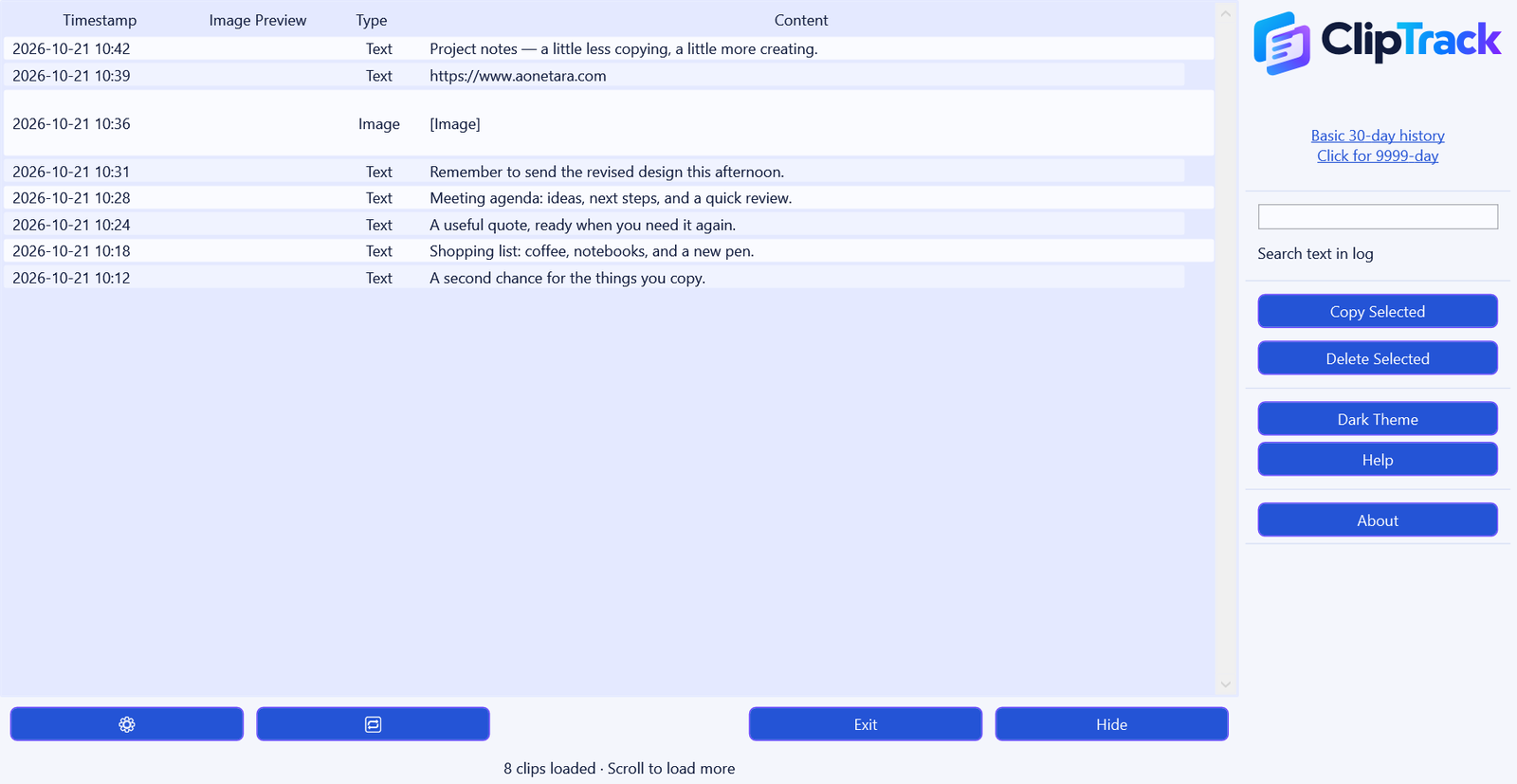
Interface preview populated with example data.
3. Find and reuse a clip
- Open ClipTrack and enter a word or phrase in the search field to find matching text.
- Browse the history list, or click the sortable headers to organize entries.
- Select one entry and choose Copy Selected, or use the entry’s Copy to Clipboard menu.
- Return to your destination app and paste as usual.
Search looks at saved text; it does not recognize text inside image captures. Scroll through the list to browse more history.
4. Set things up for your day
- Theme: switch between the light and dark appearance from the main window.
- Startup: in Settings, choose Start with Windows and whether to start in the background.
- Retention: choose how many days to keep history within the available limit. Basic currently supports up to 30 days; check the app and Store for extended-history options.
- Sharing: use About → Data Sharing to choose optional report categories or turn sharing off.
5. Keep only what you need
Use Delete Selected to remove entries you no longer want. Settings also provides controls to clear history and saved images. Be careful: clearing saved images removes the files used by image entries.
Hide keeps capturing. Exit stops capturing.
Closing or hiding the window can leave ClipTrack running in the tray. Choose Exit when you want monitoring to stop. Copied passwords or other sensitive text may appear in history; do not assume they are automatically excluded.
Need a hand?
Contact support@aonetara.com and mention ClipTrack, your Windows version, and what you were trying to do. Please keep private clipboard content out of support screenshots.